
Post: The Budget-Friendly Beginner’s Guide to Make.com Automation
How to Set Up Your First Cost-Effective Automation Scenario on Make.com
In today’s fast-paced business environment, manually handling repetitive tasks is a drain on resources, often leading to errors and bottlenecks. For high-growth B2B companies, leveraging automation isn’t just a luxury; it’s a strategic imperative. Make.com (formerly Integromat) stands out as a powerful visual automation platform that allows you to connect apps and automate workflows without writing a single line of code. This guide will walk you through setting up your very first cost-effective automation scenario, enabling you to reclaim valuable time and focus on strategic growth.
Step 1: Define Your Automation Goal and Data Flow
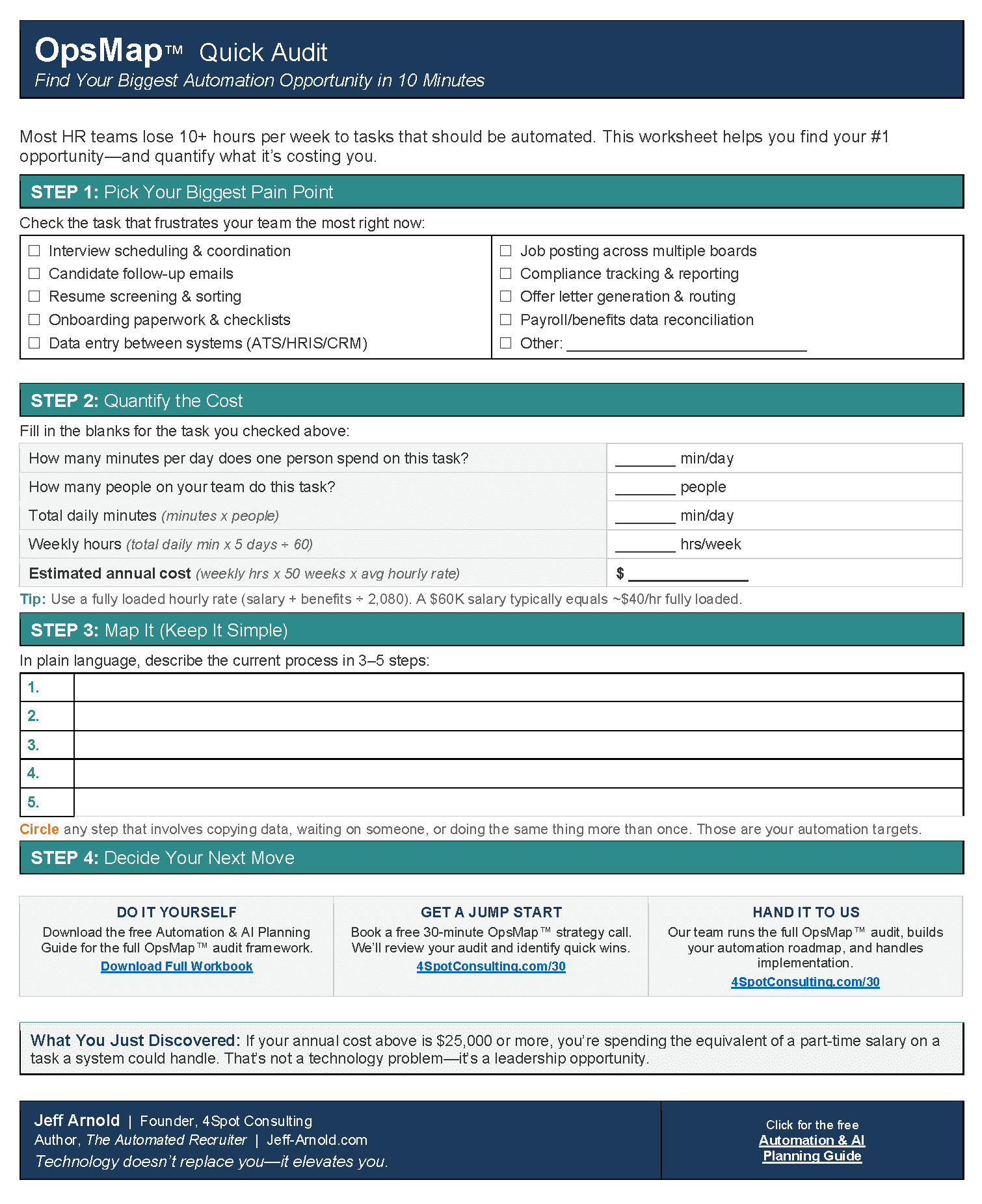
Before diving into Make.com, clearly identify a specific, repetitive task that consumes valuable time and is prone to human error. For instance, consider automating the process of capturing new lead form submissions, notifying your sales team, and logging the data. Outline the exact data you expect to receive (e.g., name, email, company) and where it needs to go (e.g., Slack notification, Google Sheet). A well-defined objective is the cornerstone of any effective automation. This initial strategic thinking, a mini “OpsMap™” if you will, ensures your efforts in Make.com are aligned with tangible business outcomes, preventing scope creep and maximizing your return on automation investment.
Step 2: Initiate Your Make.com Scenario
Log into your Make.com account. If you don’t have one, setting up a free account is quick and provides ample capacity to experiment. Once logged in, navigate to the “Scenarios” section and click “Create a new scenario.” This is where your automation journey begins. Make.com’s intuitive drag-and-drop interface is designed to simplify complex integrations, allowing business users to visually construct intricate workflows. Give your scenario a clear, descriptive name that reflects its purpose (e.g., “New Lead Form Submission to Slack & Sheet”). This organizational step is critical as you scale your automation efforts.
Step 3: Configure the Webhook Custom Trigger
For many external data sources, especially web forms or external systems, a “Webhook” is the most robust and flexible trigger. Click the large circle in your new scenario, search for “Webhooks,” and select “Custom webhook.” Choose “Create a webhook” and give it a name. Make.com will generate a unique URL. This URL is your scenario’s entry point; any data sent to it will initiate your automation. Copy this URL and paste it into your external system (e.g., as the submission endpoint for a contact form). This step effectively turns any data source into a potential trigger for your automated workflow, eliminating manual data entry.
Step 4: Transform and Route Your Data
Once your webhook is set up, run a test submission from your external system. Make.com will “hear” the data and present it, allowing you to map fields. Now, add subsequent modules to process this data. You might add a “Router” to send data down different paths based on conditions (e.g., high-priority leads get a special notification). Use “Filter” modules to ensure only relevant data continues through your scenario (e.g., filtering out spam submissions). For basic data manipulation, modules like “Text parser” or “Set multiple variables” can clean or reformat information before it reaches its final destination, ensuring data integrity across systems.
Step 5: Implement Your Output Actions: Notifications and Record-Keeping
With your data flowing into Make.com, it’s time to define the actions. For our lead capture example, add a “Slack” module to send an immediate notification to a specific channel whenever a new lead comes in. Configure the message using the data mapped from your webhook. Concurrently, add a “Google Sheets” module to “Add a Row” to a designated spreadsheet, logging all lead details for record-keeping and further analysis. This dual action approach ensures both immediate team awareness and long-term data storage, proving how a single automation can address multiple operational needs efficiently.
Step 6: Test, Refine, and Activate Your Automation
Thorough testing is paramount. Run your scenario several times with different data inputs to ensure all paths, filters, and actions behave as expected. Check Slack for notifications and your Google Sheet for accurate data logging. If issues arise, Make.com’s execution history provides detailed insights for debugging. Refine your filters, mappings, or module configurations as needed. Once confident in its performance, toggle the scenario “ON” to activate it. You’ve now deployed a cost-effective automation that saves time, reduces errors, and frees up your team for more impactful work. This iterative process is key to building robust, reliable automations that deliver consistent ROI.
If you would like to read more, we recommend this article:

RELATED POST